
 English
 Arabic
 English
 French
 German
SSID Wireless Internet: What It Is and How to Use It Safely in 2026
An SSID wireless internet is the name of a WiFi network that your phone, laptop, or other devices see when you want to connect. In simple terms, SSID is the WiFi name that identifies one network from another.
Your router uses the SSID to broadcast your network so nearby devices can find and connect to it. Without an SSID, your device would not know which wireless network to join.
Understanding what an SSID is matters because it affects how you connect to WiFi, how secure your network is, and how you avoid connecting to fake or unsafe networks.
In this guide, you will learn:
- what SSID means in WiFi
- how to find SSID of WiFi on any device
- how to connect WiFi with SSID
- how to set up SSID on a wireless internet router
- the security risks most people ignore

What Is an SSID in WiFi?
An SSID (Service Set Identifier) is the name of a wireless network. When you open your WiFi settings, every network you see is an SSID.
So if you’ve ever asked, “Is SSID the WiFi name?”, yes, it is exactly that.
In simple terms, SSID in WiFi helps your device tell one network apart from another. Without it, all wireless networks would look the same, and you would not know which one to connect to.
Here’s a quick SSID example:
- Home_WiFi
- Office_Network
- Starbucks_FreeWiFi
Each of these names is an SSID.
An SSID can include letters, numbers, and symbols, and it can be up to 32 characters long. Most routers come with a default SSID, often a mix of the brand name and numbers like TP-Link_4587 or Linksys_2034.
When people ask:
- what is ssid for wifi
- what does ssid mean
- what is wifi ssid
They all point to the same thing: the visible name of a wireless internet network that devices use to connect.
From a cybersecurity standpoint, the SSID may look simple, but it plays a key role in how users identify networks. Attackers often exploit this by creating fake networks with similar names, which is why understanding your SSID matters more than most people think.
How SSID Works in a Wireless Internet Router
Your SSID wireless internet router creates and broadcasts your network name so nearby devices can detect it.
Here’s how it works in simple steps:
- The router generates an SSID (your WiFi name)
- It broadcasts that SSID through radio signals
- Your device scans for available networks
- It displays a list of SSIDs
- You select one and connect using the SSID password
That’s the entire connection process.
So when people ask:
- what is ssid of the network
- what is ssid on network
- what is the ssid of a network
They’re referring to the name your router sends out so devices can find it.
SSID vs Password (Important Difference)
Many people confuse these two.
- SSID = the network name
- SSID wireless internet password = the key that lets you access the network
Your SSID is visible to anyone nearby, but your password protects access.
Why Your Router May Show Multiple SSIDs
Most modern routers broadcast more than one SSID, such as:
- 2.4 GHz network (longer range)
- 5 GHz network (faster speed)
Each band may have a slightly different name like:
- Home_WiFi
- Home_WiFi_5G
From a cybersecurity standpoint, the SSID itself does not secure your network. The router simply uses it as an identifier. Security comes from strong encryption, like WPA2 or WPA3, and a strong password.
Understanding this helps you avoid a common mistake: trusting a network just because the name looks familiar.
RELATED: Security Vulnerability Assessment: Definition, Process, Tools, and Real Examples
How to Find SSID of WiFi (Step-by-Step)
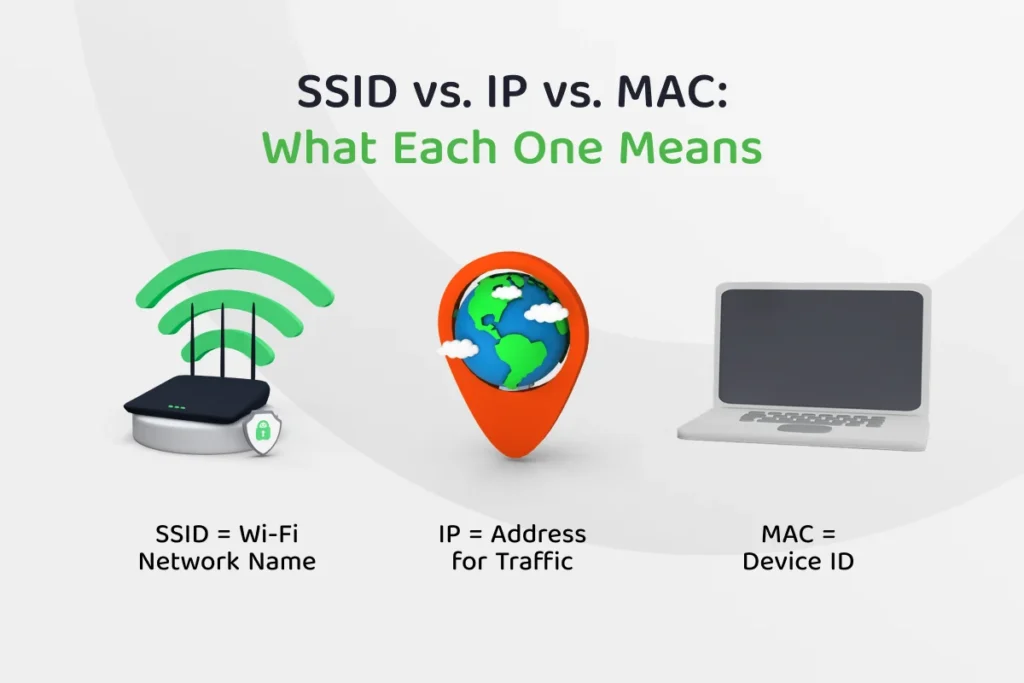
If you’re asking how to find SSID of WiFi, the answer is simple. Your SSID is the network name your device is connected to or the one you see in the list of available networks.
Here are the easiest ways to find it:
On Your Phone (Android / iPhone)
- Open Settings
- Tap WiFi
- Look at the connected network
The name you see is your SSID.
If you are not connected, you will see a list of nearby networks. Each name in that list is an SSID.
On Your Laptop (Windows / macOS)
- Click the WiFi icon on your screen
- Check the network you are connected to
That name is your SSID.
On Your Router
Most routers have a sticker on the back or bottom.
It usually shows:
- Default SSID
- Default password
This is useful if you just set up your SSID wireless internet router or reset it.
If You Can’t Find Your SSID
If the network does not appear:
- Move closer to the router
- Make sure WiFi is turned on
- Restart your router
- Check if the SSID is hidden
When people ask:
- how to find the ssid for wifi
- what is the ssid of the network I’m using
The answer is always the same, it’s the network name shown in your WiFi settings.
How to Connect WiFi with SSID
Connecting to WiFi using an SSID is straightforward. Your device just needs the network name and the correct password.
Here’s how to connect WiFi with SSID:
- Open your WiFi settings
- Wait for the list of available networks to load
- Select the correct SSID (WiFi name)
- Enter the SSID password
- Tap Connect
Once the password is correct, your device will connect and usually remember the network for future use.
If the SSID Does Not Appear
Sometimes the network may not show up. In that case, you can connect manually using SSID wireless internet settings:
- Go to WiFi settings
- Select Add Network or Join Other Network
- Enter the exact SSID name
- Choose the correct security type (WPA2 or WPA3)
- Enter the password
- Connect
What Happens If You Enter the Wrong Password
- Your device will fail to connect
- It may show “Incorrect Password”
- After multiple attempts, it may temporarily block connection
From a security perspective, always double-check the SSID before connecting. Attackers often create fake networks with similar names to trick users.
Understanding how to connect WiFi with SSID helps you avoid connecting to the wrong network and protects your data.
READ MORE: What Is a QR Code? Uses, Risks, and Safety Tips
SSID Wireless Internet Setup (Beginner Guide)
Setting up your SSID wireless internet is one of the first things you do when configuring a new router. This process lets you create a unique network name and secure your connection.
Here’s how to complete a basic SSID wireless internet setup:
- Connect your device to the router (WiFi or cable)
- Open a browser and enter your router’s IP address (often 192.168.1.1)
- Log in using the admin username and password
- Go to Wireless or WiFi settings
- Find the SSID field
- Enter your preferred network name
- Set a strong SSID wireless internet password
- Save changes
Within seconds, your new SSID will appear in your WiFi list.
Default SSID vs Custom SSID
Most routers come with a default SSID like:
- TP-Link_7845
- Linksys_3021
You should change this immediately.
A custom SSID:
- Helps you identify your network easily
- Reduces confusion in crowded areas
- Adds a small layer of security
Simple SSID Naming Tips
- Avoid using your name, address, or phone number
- Keep it easy to recognize
- Do not make it too long
From a cybersecurity standpoint, your SSID does not protect your network on its own. What matters most is your password and encryption settings. Still, setting up your SSID correctly helps you stay organized and avoid risky connections.
SSID Security Risks Most People Ignore (Cybersecurity Angle)
Most people treat their WiFi name as harmless. That’s a mistake.
Your SSID wireless internet can expose you to attacks if you don’t handle it properly. Attackers often target weak networks, and the SSID helps them decide where to strike.
1. Fake WiFi Networks (Evil Twin Attack)
Attackers can create a fake network using a name that looks exactly like a real one.
For example:
- Real: Home_WiFi
- Fake: Home_WiFi_Free
If you connect to the fake SSID, the attacker can monitor your activity and steal sensitive data.
2. Default SSID Can Reveal Your Router
Many routers use default names like:
- TP-Link_XXXX
- Linksys_XXXX
These names expose the router brand.
Attackers use this information to:
- Identify known weaknesses
- Launch targeted attacks
Changing your SSID removes this easy clue.
3. Weak SSID Wireless Internet Password
Your SSID wireless internet password protects access to your network.
If the password is weak:
- Attackers can guess it
- They can use brute-force tools
- They can gain full access to your network
4. Connecting to the Wrong Network
In busy areas, many networks look similar.
If you connect to the wrong SSID:
- Your data may not be secure
- You may expose login details
- You may fall into a spoofing trap
Important Truth
Your SSID does NOT secure your network.
Security comes from:
- WPA2 or WPA3 encryption
- Strong passwords
- Safe connection habits
If you understand these risks, you will stop treating WiFi names as just labels and start seeing them as part of your security layer.
SEE ALSO: Managed Network Services: What Professionals Need to Know in 2026
Should You Hide Your SSID?
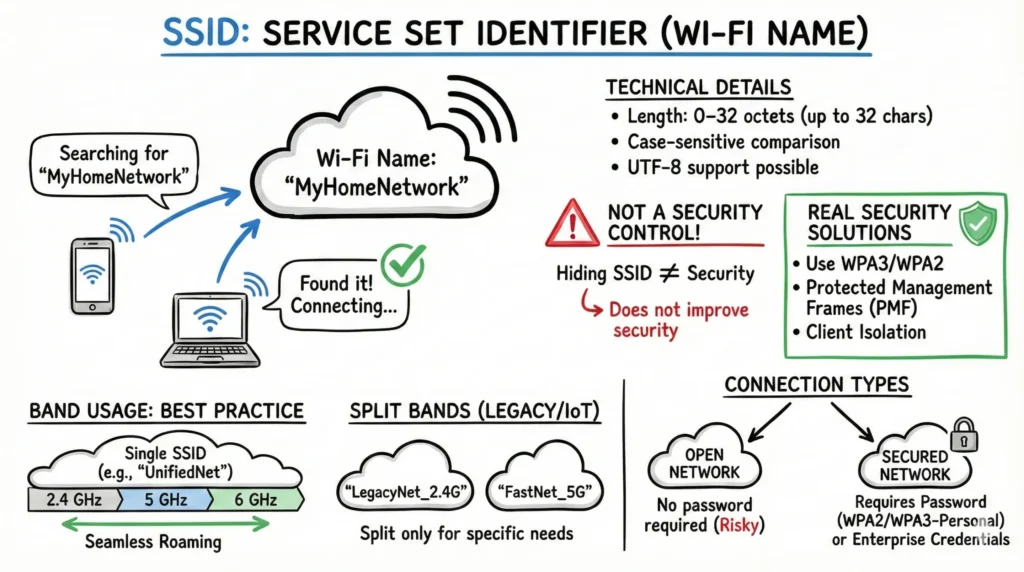
Many people believe hiding their SSID makes their WiFi secure. It doesn’t.
When you hide your SSID, your router stops broadcasting the network name. This means it won’t appear in the normal list of available WiFi networks.
At first glance, that sounds like a smart security move.
But here’s the truth.
Why Hiding Your SSID Does Not Protect You
Even if your SSID is hidden:
- Your network still exists
- Devices can still connect to it
- Attackers can still detect it using simple tools
Cybercriminals use scanning tools that reveal hidden networks in seconds. So hiding your SSID does not stop someone who knows what they’re doing.
What Actually Happens When You Hide It
- You have to enter the SSID manually to connect
- Your devices may struggle to reconnect automatically
- It creates inconvenience without real protection
Better Way to Secure Your SSID Wireless Internet
Instead of hiding your SSID, focus on what actually works:
- Use a strong SSID password
- Enable WPA2 or WPA3 encryption
- Avoid default SSID names
- Keep your router updated
Simple Recommendation
Do not rely on hiding your SSID for security.
Treat your SSID as a label, not a shield.
Real protection comes from how you secure your network, not whether the name is visible.
Common SSID Problems and Quick Fixes
Sometimes your WiFi name does not show up or refuses to connect. Most SSID wireless internet issues come from simple problems you can fix quickly.
Problem 1: SSID Not Showing
If you can’t see your network in the list:
Possible causes:
- Router is turned off
- You are out of range
- SSID is hidden
- WiFi is disabled on your device
Quick fixes:
- Move closer to the router
- Turn WiFi off and back on
- Restart your router
- Check if the SSID is hidden
Problem 2: Wrong SSID Selected
In crowded areas, many networks look similar.
If you connect to the wrong SSID:
- You may get “No Internet”
- You may enter the wrong password
- You may connect to an unsafe network
Fix:
- Double-check the exact network name
- Ask the owner if unsure
Problem 3: Incorrect SSID Password
If your SSID password is wrong:
- Connection will fail
- You may see “Authentication Error”
Fix:
- Re-enter the password carefully
- Check uppercase and lowercase letters
- Reset the password from your router if needed
Problem 4: SSID Keeps Disconnecting
If your connection drops often:
Possible causes:
- Weak signal
- Router overload
- Interference from other devices
Fix:
- Move closer to the router
- Restart the router
- Reduce the number of connected devices
Problem 5: Hidden SSID Connection Issues
If your SSID is hidden:
- Devices may not reconnect automatically
- You may need manual setup
Fix:
- Use Add Network in WiFi settings
- Enter the exact SSID and password
Most SSID issues are not serious. Once you understand how SSID wireless internet works, you can fix these problems in minutes.
MORE: Operation Per Second: Meaning, FLOPS vs IOPS 2026
How Do I Specify SSID on Xbox?
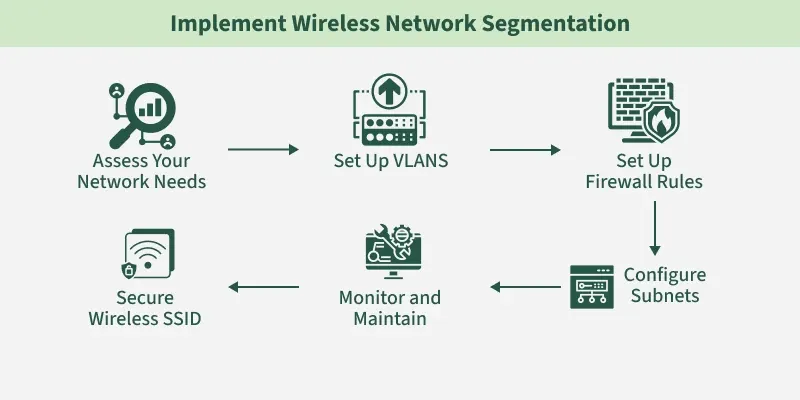
If your network does not show up, you can connect manually by entering the SSID. This is useful when the SSID is hidden or when your console fails to detect it.
Here’s how to specify SSID on Xbox:
- Press the Xbox button on your controller
- Go to Profile & System
- Select Settings
- Click General
- Choose Network Settings
- Select Set up wireless network
- Click Add new network
- Enter the exact SSID (WiFi name)
- Enter the SSID password
- Confirm and connect
Important Tips
- Enter the SSID exactly as it appears (it is case-sensitive)
- Make sure you choose the correct security type (WPA2 or WPA3)
- Double-check your password before connecting
If you type the wrong SSID or password, the connection will fail immediately.
Understanding how to manually enter an SSID helps you connect even when the network is hidden or not visible in your SSID wireless internet settings.
Best Practices for SSID Wireless Internet
Setting up your SSID wireless internet the right way helps you stay secure and avoid common connection problems. These simple practices make a big difference.
Use a Unique SSID Name
Avoid default names like:
- TP-Link_XXXX
- Linksys_XXXX
A unique name helps you identify your network quickly and reduces confusion in crowded areas.
Avoid Personal Information
Do not include:
- Your name
- Your address
- Your phone number
Attackers can use this information to target your network.
Set a Strong SSID Wireless Internet Password
Your SSID password protects your network.
Use:
- At least 12 characters
- A mix of letters, numbers, and symbols
Avoid simple passwords like:
- 12345678
- password
Enable WPA2 or WPA3 Encryption
Encryption protects your data when you connect to WiFi.
Always use:
- WPA2 (minimum)
- WPA3 (best option if available)
Keep Your Router Updated
Router updates fix security issues.
- Check for firmware updates regularly
- Install updates as soon as they are available
Double-Check Before Connecting
Before joining any network:
- Confirm the SSID name
- Avoid networks that look suspicious
- Do not connect to unknown public WiFi
These practices help you stay safe while using SSID wireless internet. The goal is simple, make your network easy for you to recognize but hard for attackers to access.
Conclusion
An SSID wireless internet setup is simple on the surface, but it plays a critical role in how you connect and stay secure online. Your SSID is the name your router broadcasts, and it helps your devices find and connect to the right network.
Now you understand:
- what an SSID is and why it matters
- how to find SSID of WiFi on any device
- how to connect WiFi with SSID
- how to set up and manage your SSID properly
- the security risks that come with weak or careless setups
The key takeaway is clear.
Your SSID is not just a name. It is the first step in your network’s identity. If you ignore it, you increase your risk of connecting to the wrong network or exposing your data.
Keep your SSID simple, secure your password, and always verify the network before you connect.
That’s how you use wireless internet safely.
Ready to go beyond just understanding how WiFi and network security work and start building a real career in cybersecurity?
At ExcelMindCyber Institute, you don’t just learn terms like SSID, encryption, or network security. You learn how to apply them in real-world scenarios like risk management, threat detection, and security operations.
In our 90-day program, you gain hands-on experience, build job-ready skills, and learn exactly what companies look for when hiring for GRC and cybersecurity roles.
If you’re serious about breaking into cybersecurity and earning in-demand, high-paying roles, this is your starting point.
Don’t stop at understanding how networks work. Learn how to secure them and get paid for it.
FAQ
What do I put for SSID for Wi-Fi?
You can choose any name you want for your SSID. Pick a name that is easy for you to recognize but does not reveal personal information like your name or address. A simple and unique name works best.
What is the 10 digit SSID number?
There is no standard “10 digit SSID number.” An SSID is simply a network name, not a fixed number. Some routers include numbers in the default SSID, but that is just part of the name, not a required format.
Is the SSID my IP address?
No, the SSID is not your IP address. The SSID is the name of your WiFi network, while an IP address is a numerical label that identifies devices on a network and helps route data.
What happens if I change my SSID?
When you change your SSID, your network will appear with the new name. All previously connected devices will disconnect and will need to reconnect using the new SSID and password. Changing it can improve security and make your network easier to identify.